
Uploading a rate sheet
Use Rates → Upload Rate Sheet when a supplier sends a PDF, XLSX, XLS, or DOCX. TourBiddy stores the source and sends it through the AI parsing pipeline. The parser reads tables and supporting notes, then produces structured rates for review; it does not publish rates automatically.
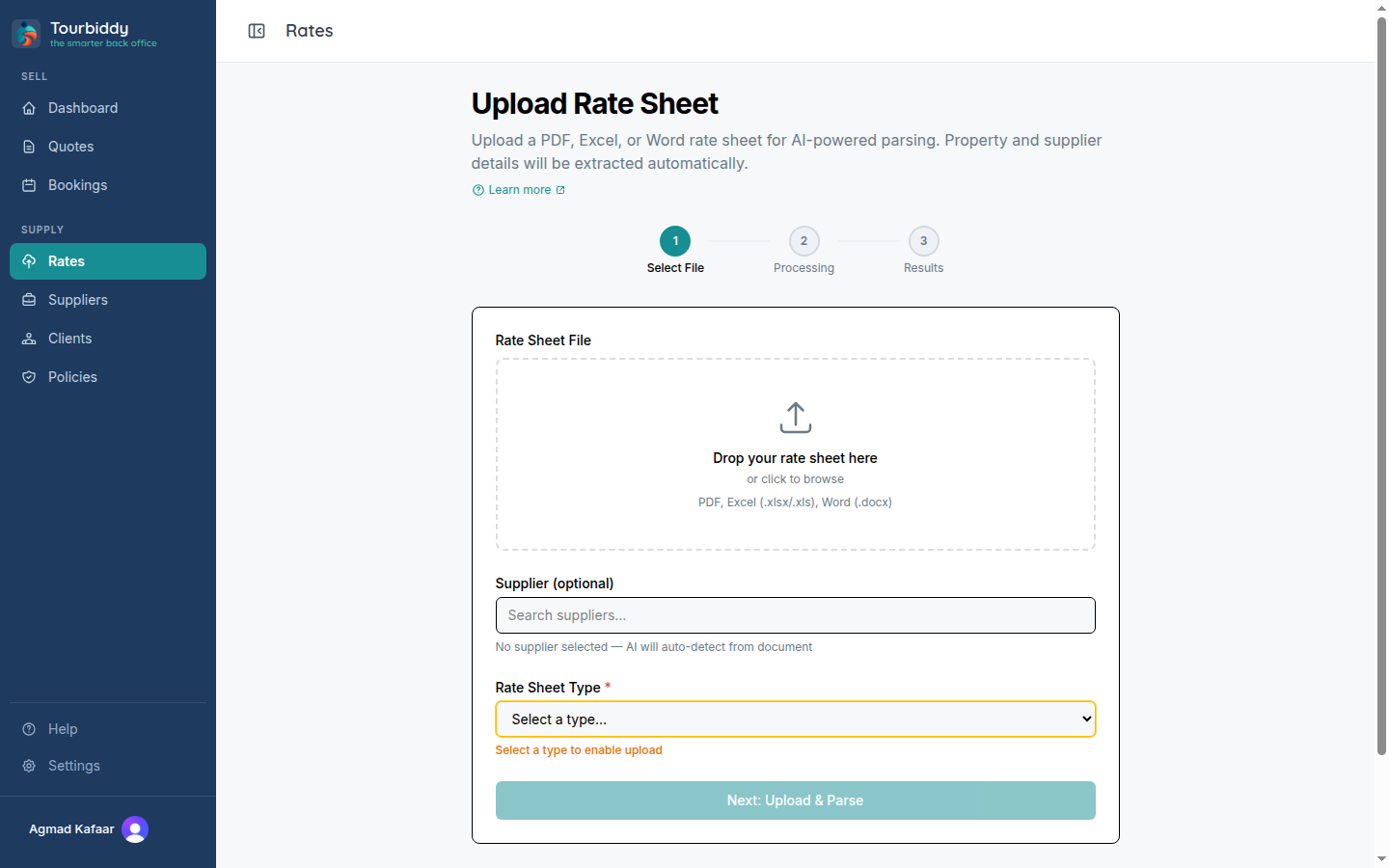
- Drop the file into the upload area or select it from your computer.
- Choose the supplier if it already exists. Leaving it blank can be useful for a new supplier, but link the result before quoting.
- Select the sheet type: accommodation, activity, transfer, tour, park fees, or car rental.
- Select the rate type when prompted. STO means a supplier net/wholesale rate; Rack means a public retail rate that may include a commission calculation.
- Submit the upload and wait for the parsed result. For large or complicated sheets, check the result carefully rather than assuming every note was interpreted correctly.
Use Mixed when one document contains both STO and Rack sections. Use rate type hints to steer the parser when the document title is ambiguous. Europcar and Avis-style car-rental sheets use the car-rental pipeline and may lock the rate type to STO where the supplier’s rates are always net.
After processing, open the rate sheet from the Rates list. Correct data on the validation page, or resume a manual draft in the wizard. Publish only after the dates, currency, pricing unit, and supplier terms match the source.